
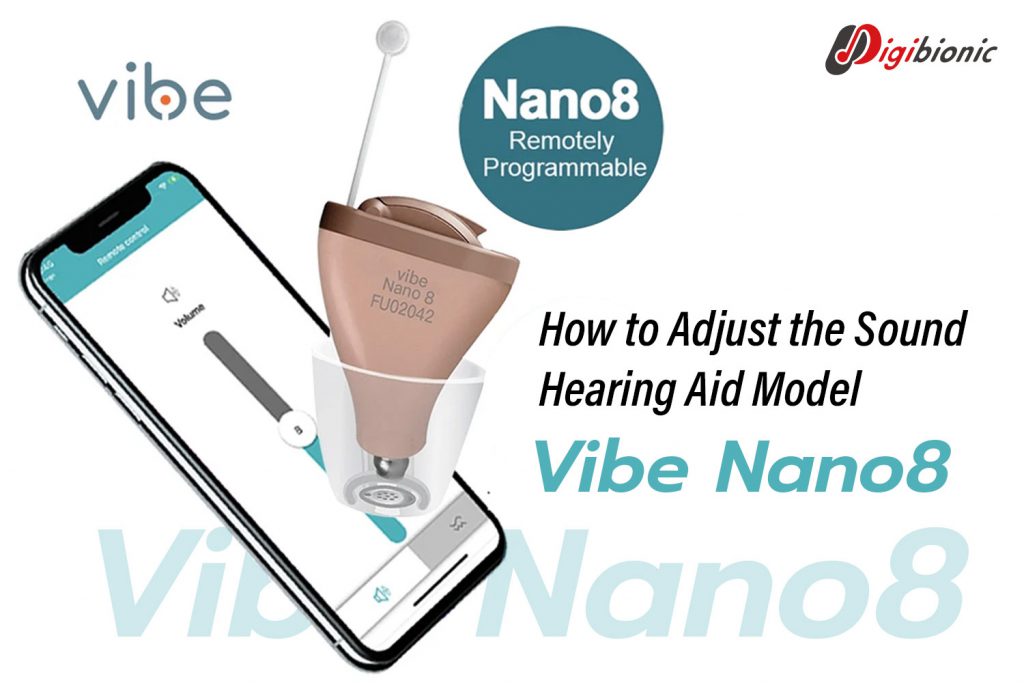
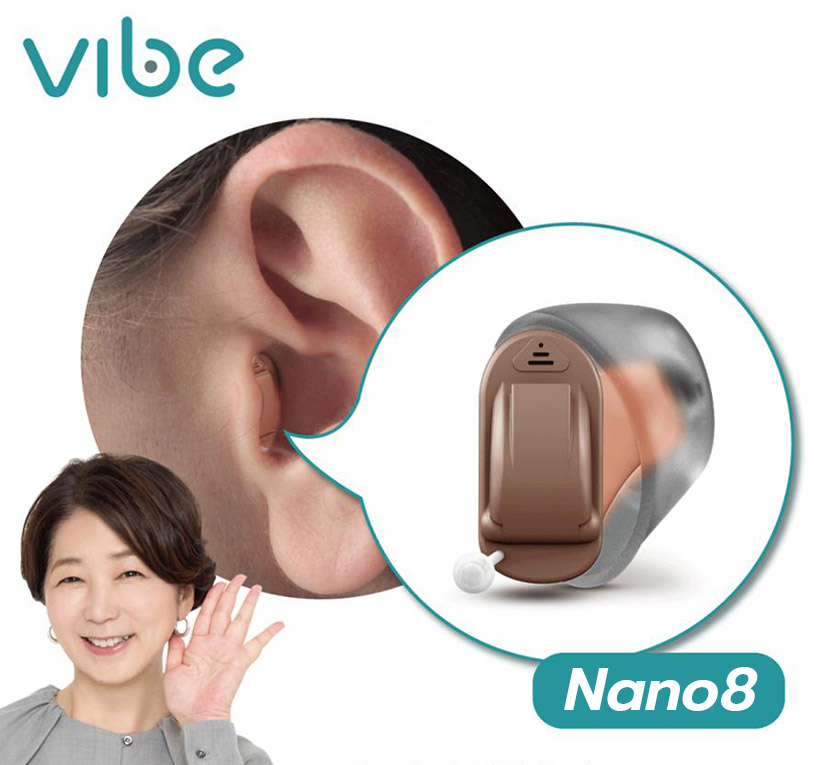
In this article, we will introduce the Vibe Nano 8 hearing aid and how to adjust its sound settings. The Vibe Nano 8 is an advanced, thoughtfully designed hearing aid created to assist individuals with mild to moderate hearing loss. Its key features and benefits include:
Users can customize the Vibe Nano 8 to meet their specific hearing needs using a smartphone app. The app allows adjustments of volume, bass, and treble, and provides multiple listening programs suitable for different environments. Detailed customization can be performed at hospitals or Digibionic hearing centers, where specialists provide close guidance.
Adjusting the Vibe Nano 8 via the app using an audiogram is a process that tailors the hearing aid’s sound output to the individual user’s hearing profile. Here is the general procedure for sound adjustment using the audiogram:
Prepare the Audiogram
Undergo a hearing test conducted by a hearing specialist, such as an audiologist or ENT doctor.
Obtain an audiogram showing your hearing results at each frequency and sound level.
(If you do not have an audiogram, you can get a free hearing test at a nearby hospital or Digibionic hearing center.)
The specialist inputs the audiogram data into the fine-tuning program.
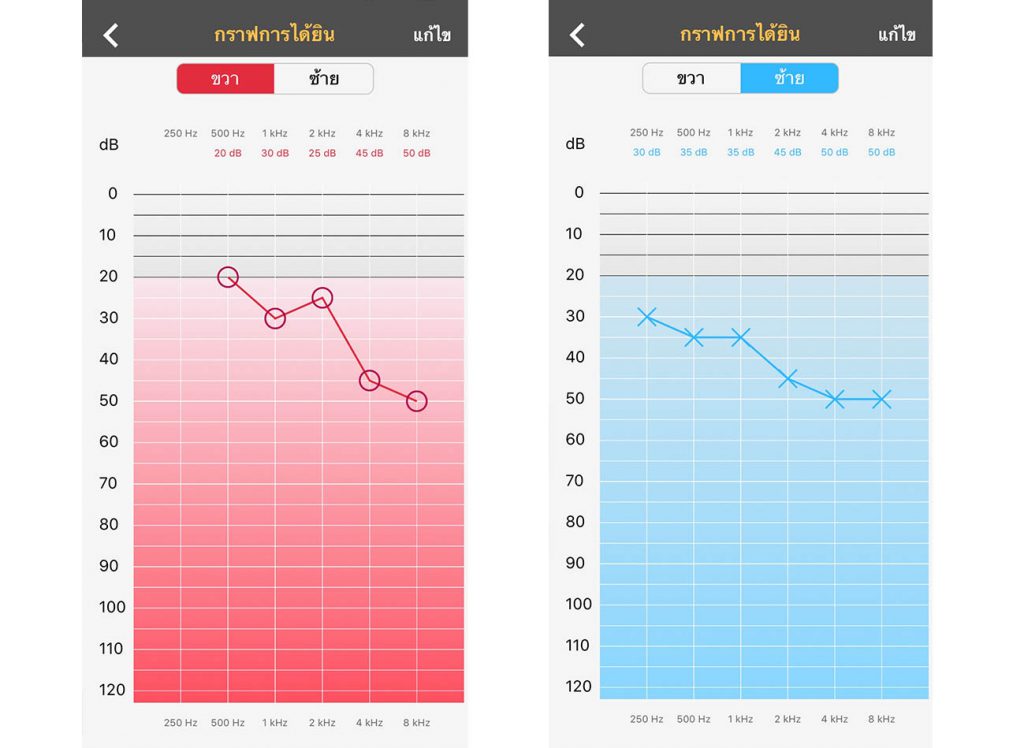
Enter the audiogram information into the app, specifying hearing levels at each frequency (e.g., 250 Hz, 500 Hz, 1000 Hz, 2000 Hz, 4000 Hz, 8000 Hz).
Specify the hearing threshold in decibels (e.g., 20 dB, 40 dB, 60 dB) for each frequency for both the left and right ears, as illustrated below.
Next, you can fine-tune the sound in various areas, such as volume, sound balance, speech clarity, your own voice, and high-pitched sounds.
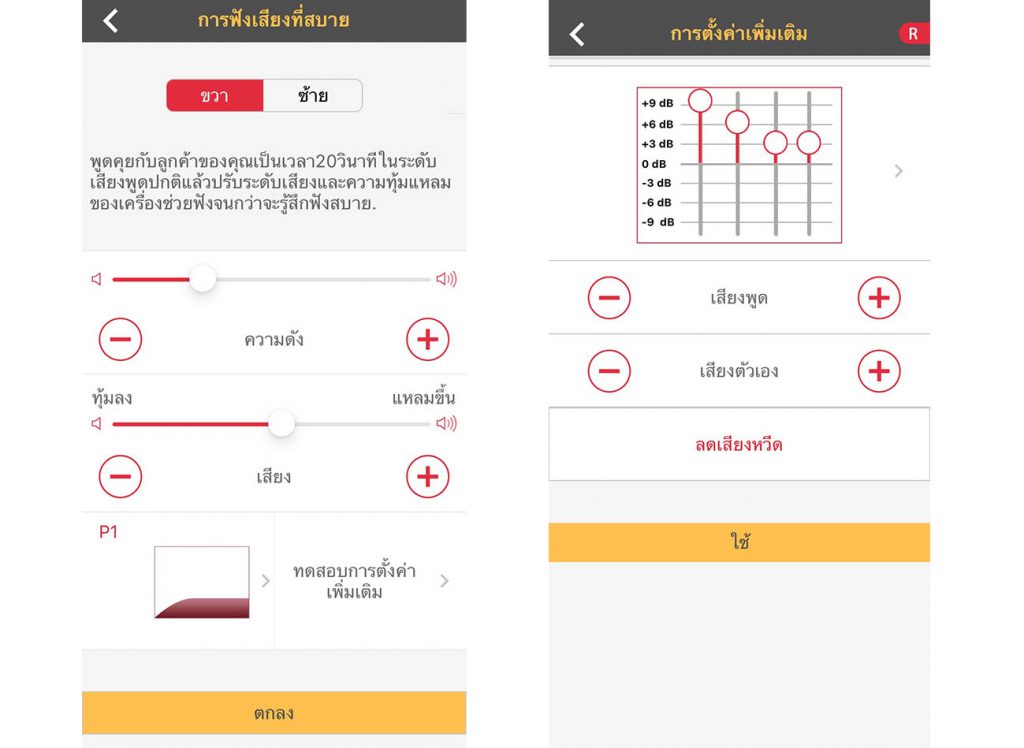
Then, the application will suggest which sound profile best matches the user’s hearing.
Choosing the appropriate sound profile depends on each individual’s needs and usage. In summary:
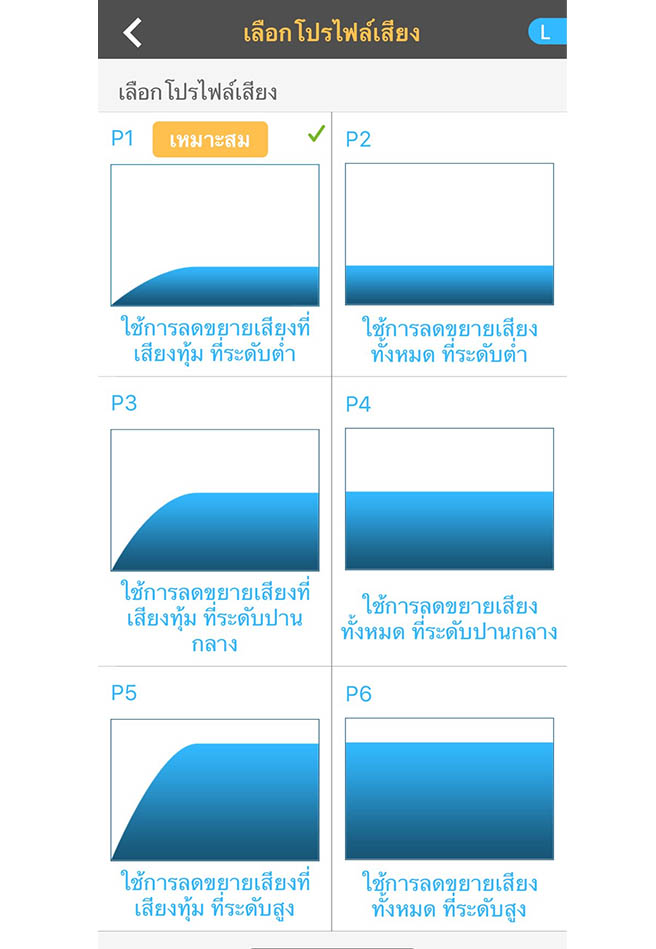
P1 (Bass Reduction at Low Level):
Suitable for users who want mild bass reduction without over-dampening.
Ideal for quiet environments or for those who want clearer bass sounds.
P2 (Overall Reduction at Low Level):
Suitable for users who want to reduce all sounds at a low level.
Ideal for use in low-noise environments, such as at home.
P3 (Bass Reduction at Medium Level):
Suitable for users who want moderate bass reduction.
Ideal for environments with moderate noise, such as workplaces.
P4 (Overall Reduction at Medium Level):
Suitable for users who want moderate reduction of all sounds.
Ideal for workplaces or moderately noisy areas.
P5 (Bass Reduction at High Level):
Suitable for users who want strong bass reduction.
Ideal for noisy environments or loud places.
P6 (Overall Reduction at High Level):
Suitable for users who want strong reduction of all sounds.
Ideal for very loud environments, such as concerts or crowded markets.
Choosing the right profile depends on the user’s environment and personal needs. The Vibe Nano 8 hearing aid also comes with an app that allows users to adjust sound levels anytime. For more detailed adjustments, please contact 02-115-0568 to schedule a full hearing aid customization session.
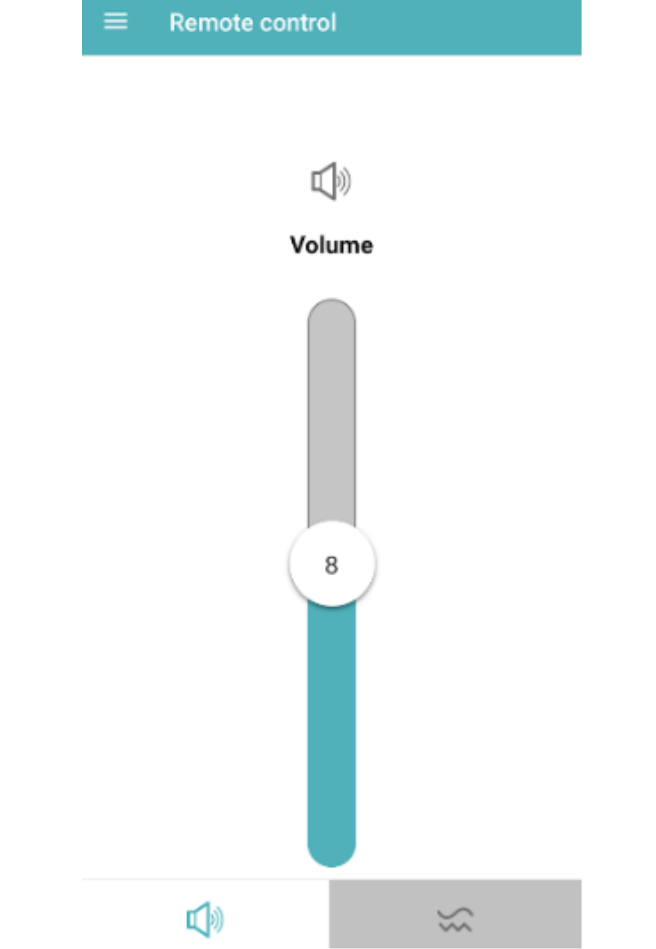
The following image illustrates the Vibe app, designed to control sound settings remotely.
Open the Vibe app and ensure the hearing aid is successfully connected.
Go to the volume control section and tap the tab or icon representing volume (in the image, it’s the speaker icon).
Slide up to increase the volume.
Slide down to decrease the volume.
The current volume level will be displayed (e.g., 8 in the image).
Open the Vibe app and ensure the hearing aid is successfully connected.
Go to the sound balance section and tap the tab or icon representing sound balance (in the image, it’s the wave icon).
Slide up to increase treble.
Slide down to increase bass.
The current balance level will be displayed.
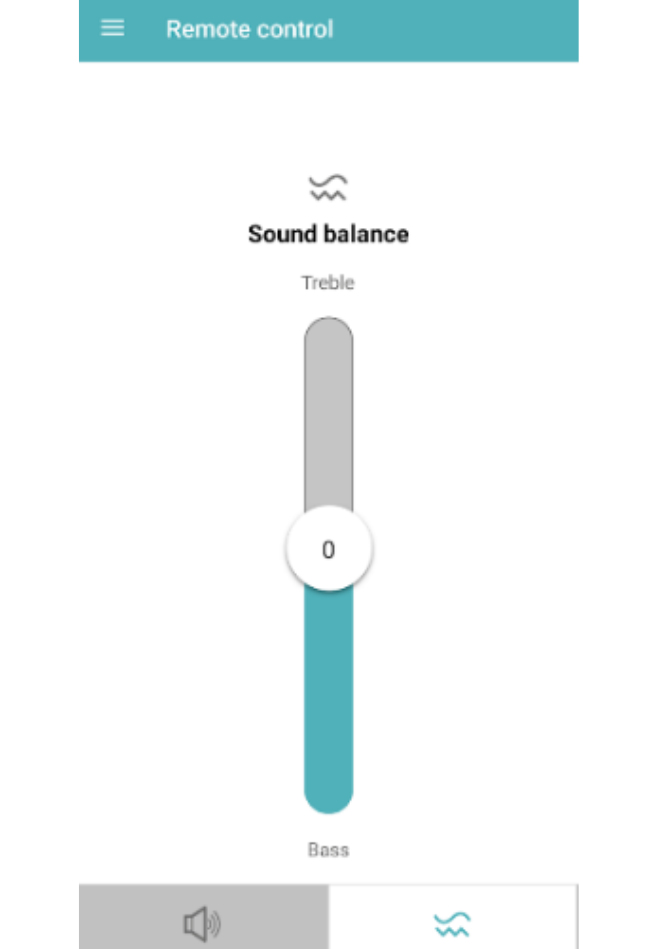
The application provides a convenient way to control the volume and sound balance of your hearing system remotely, ensuring the best possible listening experience.
Did you know the disadvantages and limitations of in-ear hearing aids?
Not recommended for users with wet earwax as it may damage or short-circuit the hearing aid.
Discomfort: Inserting the hearing aid into the ear canal may feel uncomfortable, especially if it does not fit the ear properly.
Earwax blockage: Using an in-ear hearing aid can lead to earwax buildup, potentially clogging the device.
Feedback noise: In-ear hearing aids may produce feedback when sound is reflected back into the microphone.
Difficulty adjusting: Some people may find it hard to get used to in-ear hearing aids because they fit snugly in the ear canal.
Limited use in certain situations: In-ear hearing aids may not be suitable for sports or high-movement activities, as the device can easily fall out.
In-ear hearing aids may be suitable for some users but not for everyone. It is recommended to consult a medical professional or hearing specialist to choose the most suitable hearing aid for you.
What is a hearing aid?
A hearing aid is an electronic device designed to help people with hearing loss hear more clearly and effectively. It amplifies sounds from the environment to make them easier to hear. Hearing aids are classified into two main types: analog and digital, each with distinct working processes and sound adjustment methods.
Main components of a hearing aid:
Microphone: Captures sound from the environment and converts it into electrical signals.
Amplifier: Increases the strength of the electrical signals received from the microphone.
Speaker: Converts amplified electrical signals back into sound and delivers it to the user’s ear.
Battery: Powers the hearing aid.
Volume control: Allows the user to adjust the sound level.
How a hearing aid works:
Sound reception: The microphone picks up environmental sounds.
Signal conversion: The sound is converted into electrical signals.
Signal amplification: Electrical signals are amplified by the amplifier.
Signal reconversion: Amplified signals are converted back into sound through the speaker.
Sound delivery: The sound is sent into the user’s ear.
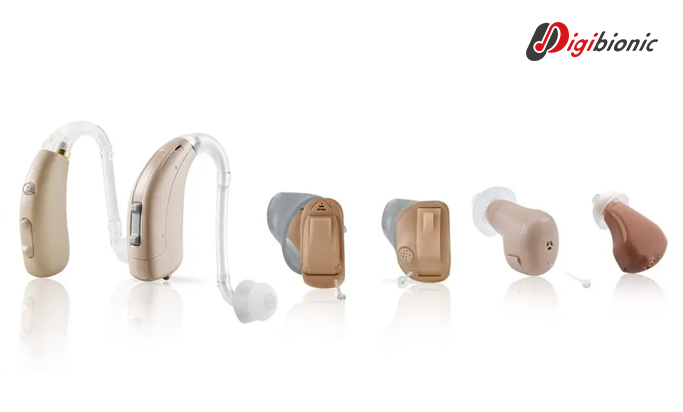
Types of hearing aids:
In-the-Ear (ITE): Fits entirely inside the ear canal.
Behind-the-Ear (BTE): Main device sits behind the ear, with a tube directing sound into the ear canal.
In-the-Canal (ITC) and Completely-in-Canal (CIC): Smaller devices that are discreetly placed inside the ear canal.
Next, let’s take a look at Mimitakara’s hearing aids. We recommend the myHearing I1, which has a similar external design to the Vibe Nano 8.
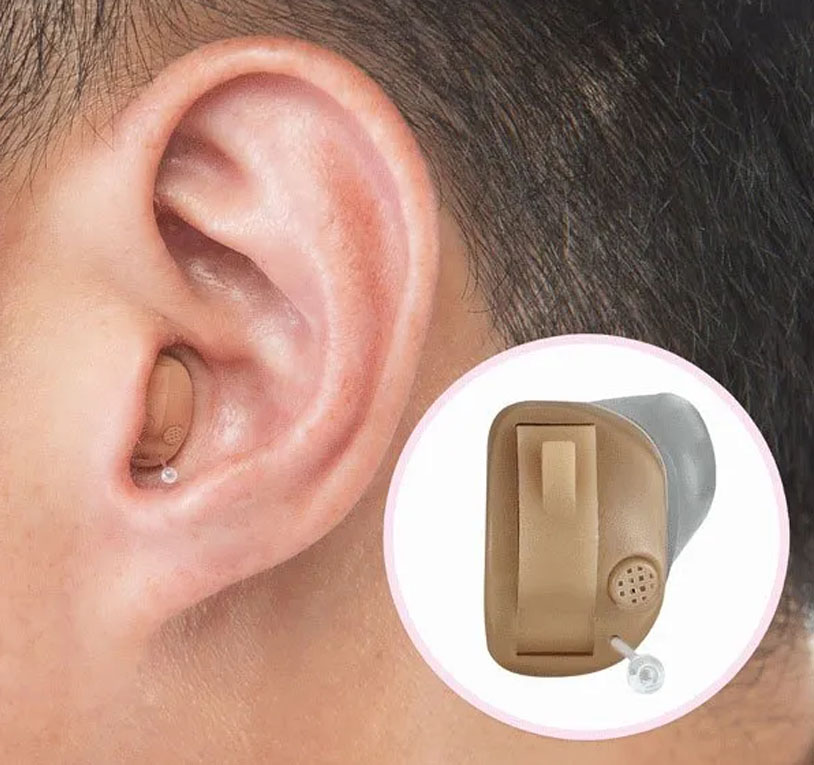
The myHearing I1 is an advanced and carefully designed hearing aid intended to assist individuals with mild to moderate hearing loss. You can read more about its key features and benefits here:
https://digibionic.co.th/myhearingi1
Users can customize the myHearing I1 to their specific hearing needs using a smartphone app, which allows adjustments to volume and sound details across all frequencies. Detailed fine-tuning can also be done at hospitals or Digibionic hearing centers with specialists providing close support.
Prepare the Audiogram
Get a hearing test from a hearing specialist, such as an audiologist or ENT doctor.
Obtain an audiogram showing hearing ability at each frequency and intensity level.
(If the user does not have an audiogram, hearing tests can be done at a nearby hospital or Digibionic Hearing Service Center free of charge.)
The specialist will enter the audiogram data into the fitting software for detailed adjustment.
Input the audiogram data into the app, specifying hearing levels at each frequency (e.g., 250 Hz, 500 Hz, 1000 Hz, 2000 Hz, 4000 Hz, 8000 Hz).
Specify the intensity levels (e.g., 20 dB, 40 dB, 60 dB) for each frequency according to the audiogram for both left and right ears, as shown below.
Then, you can adjust the sound details in various aspects, such as volume, sound balance, conversation sound, your own voice, and whistle sounds.
Then the application will help recommend which sound profile best suits the user’s hearing.
Choosing the appropriate sound profile depends on the individual’s needs and usage. In summary, it is as follows:
P1 (Bass reduction at low level):
Suitable for those who want light bass reduction without excessively lowering the overall sound.
Ideal for listening in quiet environments or for users who want clearer bass.
P2 (Overall sound reduction at low level):
Suitable for those who want to reduce all sounds at a low level.
Ideal for use in environments with minimal noise, such as at home.
P3 (Bass reduction at medium level):
Suitable for those who want moderate bass reduction.
Ideal for listening in moderately noisy environments or at work.
P4 (Overall sound reduction at medium level):
Suitable for those who want to reduce all sounds at a medium level.
Ideal for use in the workplace or moderately noisy environments.
P5 (Bass reduction at high level):
Suitable for those who want strong bass reduction.
Ideal for listening in highly noisy environments or loud places.
P6 (Overall sound reduction at high level):
Suitable for those who want to reduce all sounds at a high level.
Ideal for very loud environments, such as concerts or crowded markets.
Choosing the appropriate profile depends on the user’s environment and needs. The myHearing I1 hearing aid also comes with an app that allows users to adjust sound levels at any time. For more detailed adjustment instructions, please contact 02-115-0568 to schedule a full hearing aid customization session.
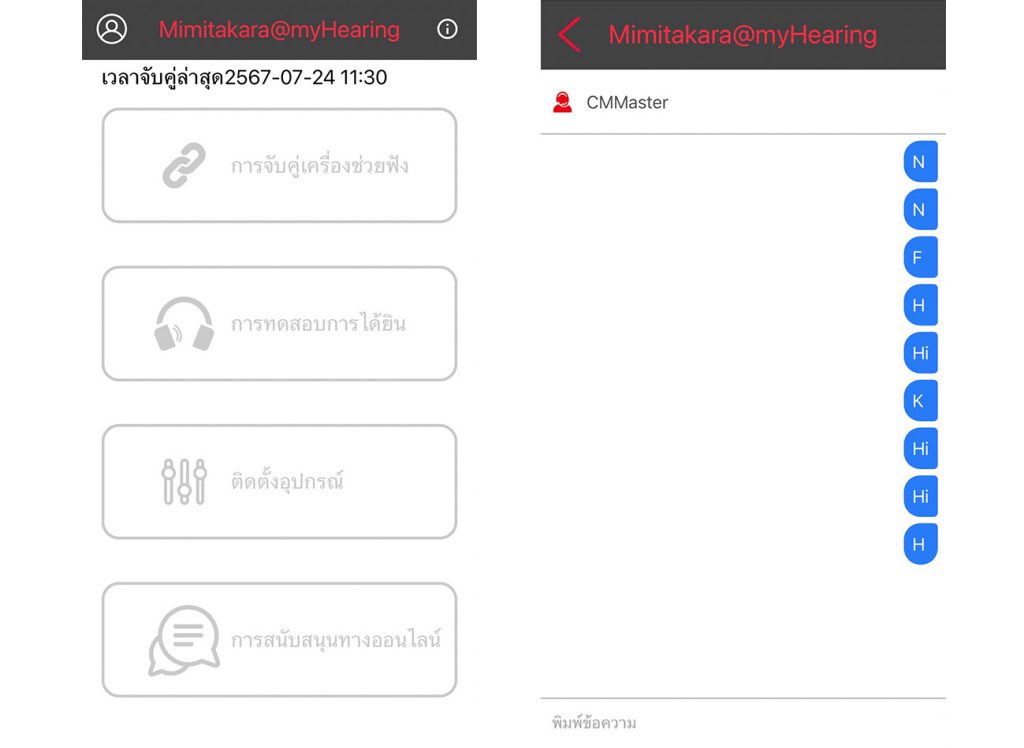
When you first launch the Mimitakara @ myHearing application, you need to register a new user account.
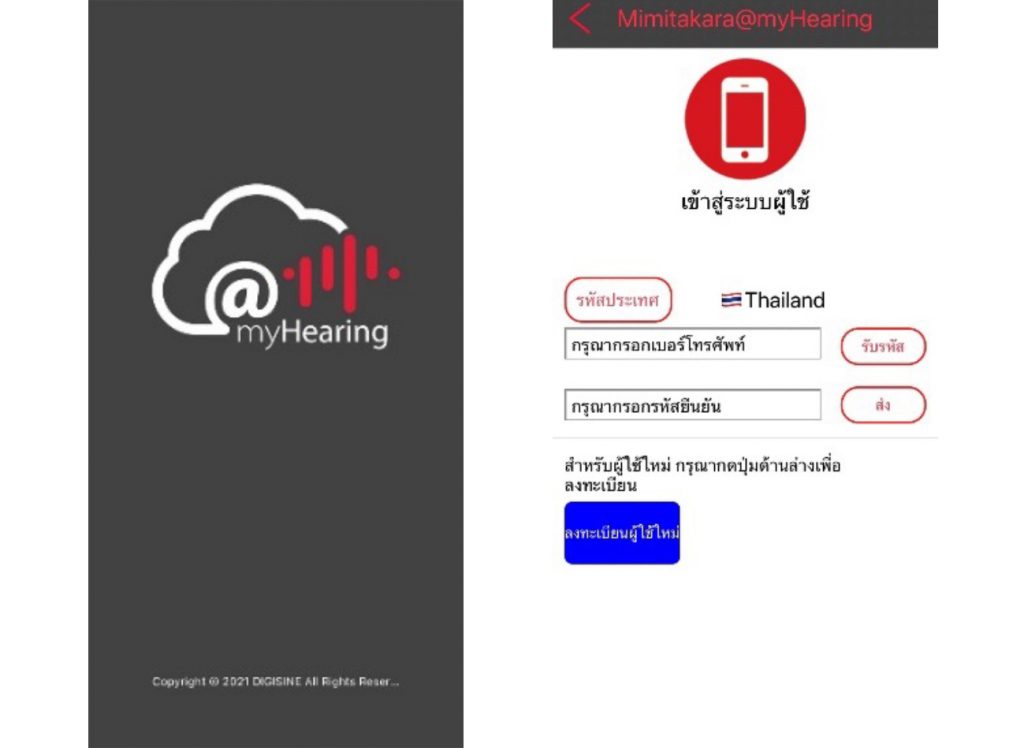
Enter the user’s phone number and tap to receive the verification code.
A confirmation code will be sent to the user’s phone. Enter the code and tap submit to start using the application.
Once registration is complete, you will arrive at this page. Then, the user should select and pair their hearing aid according to the model (C1, I1, B1), connecting one side at a time. When the connection is successful, the date and time of the pairing will be displayed.
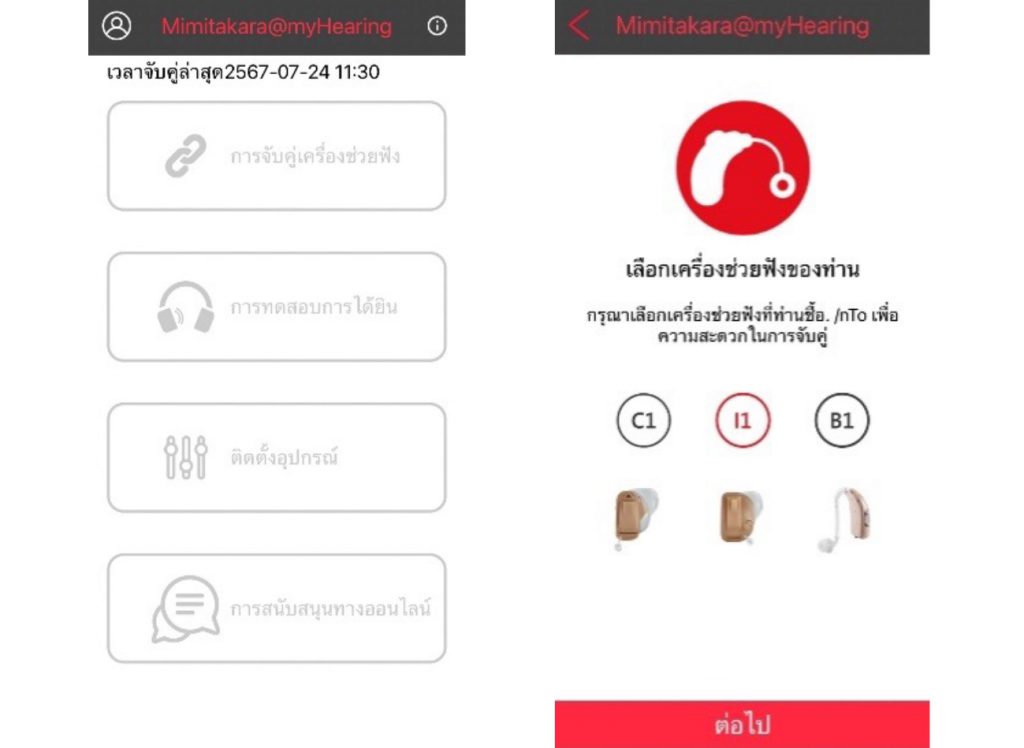
Then, enter the audiogram for both ears, and you can adjust the volume or sound balance by yourself.
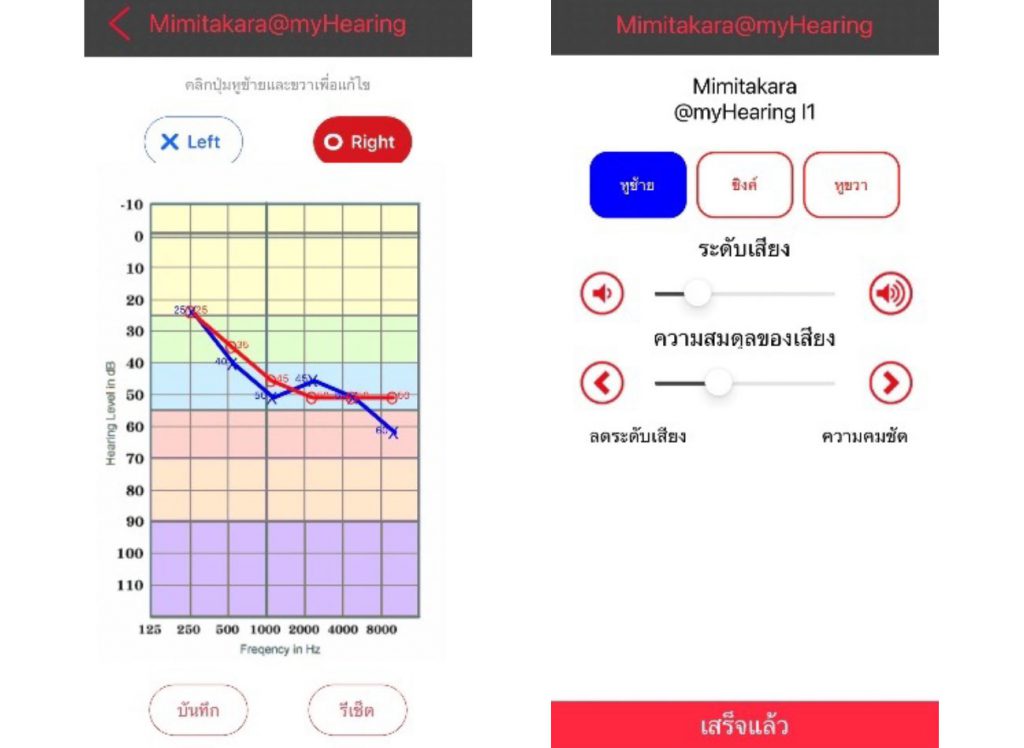
The myHearing I1 is designed for ease of use, with settings that can be adjusted via the app or remotely, so the user does not need to visit the store. By selecting the “Online Support” option, you can send a message to an expert who will assist in adjusting your hearing aid at any time.
Did you know the in-the-ear hearing aids have some disadvantages and limitations?
Not recommended for users with wet earwax: Moist earwax may cause damage or short-circuit the hearing aid.
Discomfort: Wearing in-the-ear hearing aids may feel tight or uncomfortable, especially if they do not fit the ear canal properly.
Earwax blockage: Using in-the-ear hearing aids can lead to earwax buildup, which may block the device.
Feedback noise: In-the-ear hearing aids may produce feedback when sound is reflected back into the microphone.
Difficulty adapting: Some people may find it hard to get used to in-the-ear hearing aids as they fit snugly in the ear canal.
Limited usage in certain situations: In-the-ear hearing aids may not be suitable for sports or activities with a lot of movement, as they can easily fall out.
In-the-ear hearing aids are suitable for some users but not for everyone. It is recommended to consult a medical professional or a hearing specialist to choose the most appropriate hearing aid for you.
Next, let’s take a look at the Mimitakara myHearing B1 hearing aid.
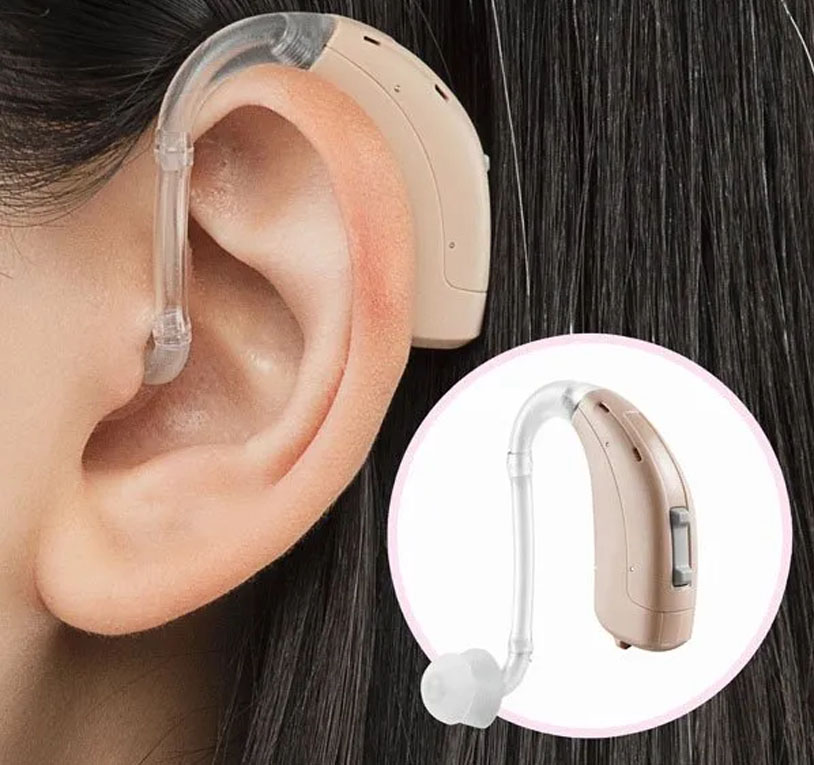
The Mimitakara myHearing B1 is a digital behind-the-ear (BTE) hearing aid with cloud-based hearing support. It features a modern design that fits the ear’s anatomy, compact size, and delivers high-quality, clear sound. The device includes feedback suppression, is lightweight, comfortable to wear, and has a replaceable battery for long-lasting use. It is suitable for individuals with moderate to severe hearing loss.
Prepare the audiogram (Audiogram)
Undergo a hearing test with a hearing specialist, such as an audiologist or an ENT doctor.
Receive an audiogram that shows hearing results at each frequency and sound level.
(If the user does not have an audiogram, they can get a hearing test at a nearby hospital or a Digibionic hearing service center free of charge.)
A specialist will enter the audiogram into a program for detailed adjustment.
Input the audiogram data into the application, specifying the hearing level at each frequency (e.g., 250 Hz, 500 Hz, 1000 Hz, 2000 Hz, 4000 Hz, 8000 Hz).
Specify the hearing threshold (e.g., 20 dB, 40 dB, 60 dB) for each frequency for both the left and right ears, as shown in the image below.
Then you can adjust the sound details in various sections, such as volume, sound balance, conversation voice, your own voice, and whistle sounds.
Then the application will help suggest which sound profile best suits the user’s hearing.
Choosing the appropriate sound profile depends on each individual’s needs and usage. In summary, it is as follows:
P1 (Bass reduction at low level):
Suitable for those who want a slight reduction in bass without overly reducing the sound.
Ideal for listening in quiet environments or for those who want clearer bass.
P2 (Overall sound reduction at low level):
Suitable for those who want to reduce all sounds at a low level.
Best for use in low-noise environments or at home.
P3 (Bass reduction at medium level):
Suitable for those who want a moderate reduction in bass.
Ideal for listening in moderately noisy environments or at work.
P4 (Overall sound reduction at medium level):
Suitable for those who want to reduce all sounds at a medium level.
Best for use at work or in moderately noisy places.
P5 (Bass reduction at high level):
Suitable for those who want a high reduction in bass.
Ideal for listening in noisy environments or loud places.
P6 (Overall sound reduction at high level):
Suitable for those who want a high reduction in all sounds.
Best for use in very loud environments, such as concerts or crowded markets.
Choosing the appropriate profile depends on the user’s environment and personal needs. The myHearing B1 hearing aid also comes with an application that allows users to adjust sound levels at any time. For detailed adjustment instructions, please contact 02-115-0568 to schedule a full tuning session.
When launching the Mimitakara@myHearing application, you must register as a new user.
Enter the user’s phone number and tap to receive a code.
A verification code will be sent to the user’s phone. After entering the code and submitting, you can start using the application.
Once registration is complete, you will reach this page. Then, the user should select to pair the B1 hearing aid, connecting each device one at a time. When the connection is successful, the date and time of the hearing aid connection will be displayed.
Then, enter the audiograms for both ears, and you can adjust the volume levels or sound balance by yourself.
The myHearing B1 is designed for easy use, with settings that can be adjusted via the app or remotely, so users don’t need to visit the store. By selecting the “Online Support” option, you can send messages to experts who will adjust the sound for you at any time.
Therefore, whether it is the Vibe Nano8 hearing aid or Mimitakara’s myHearing I1 and B1 models, the sound customization, functions, external design, and price range are quite similar, including product warranties and after-sales services. All of these devices can have their sound settings adjusted at hospitals or Digibionic hearing aid centers at any time, or you can visit for further consultation.
Let people experience the beauty of hearing aids and hear the sounds of their family’s love once again.
If you wish to share that love with Digibionic, please contact us…


3 Ways to Choose a Hearing Aid: Expensive hearing aids may have many features, but a high-priced hearing aid might not be suitable for you!
Why do hearing aid prices vary by model? One factor that increases the price is the technology, research and development, as well as the capabilities of the hearing aid.

Currently, it is found that up to 80% of seniors experience hearing loss due to age-related auditory nerve degeneration, typically starting between the ages of 60 and 80.
เราใช้คุกกี้เพื่อพัฒนาประสิทธิภาพ และประสบการณ์ที่ดีในการใช้เว็บไซต์ของคุณ คุณสามารถศึกษารายละเอียดได้ที่ นโยบายความเป็นส่วนตัว และสามารถจัดการความเป็นส่วนตัวเองได้ของคุณได้เองโดยคลิกที่ ตั้งค่า